Algolia setup
Algolia dashboard settings
- Sign up for an account with Algolia
- Go to dashboard
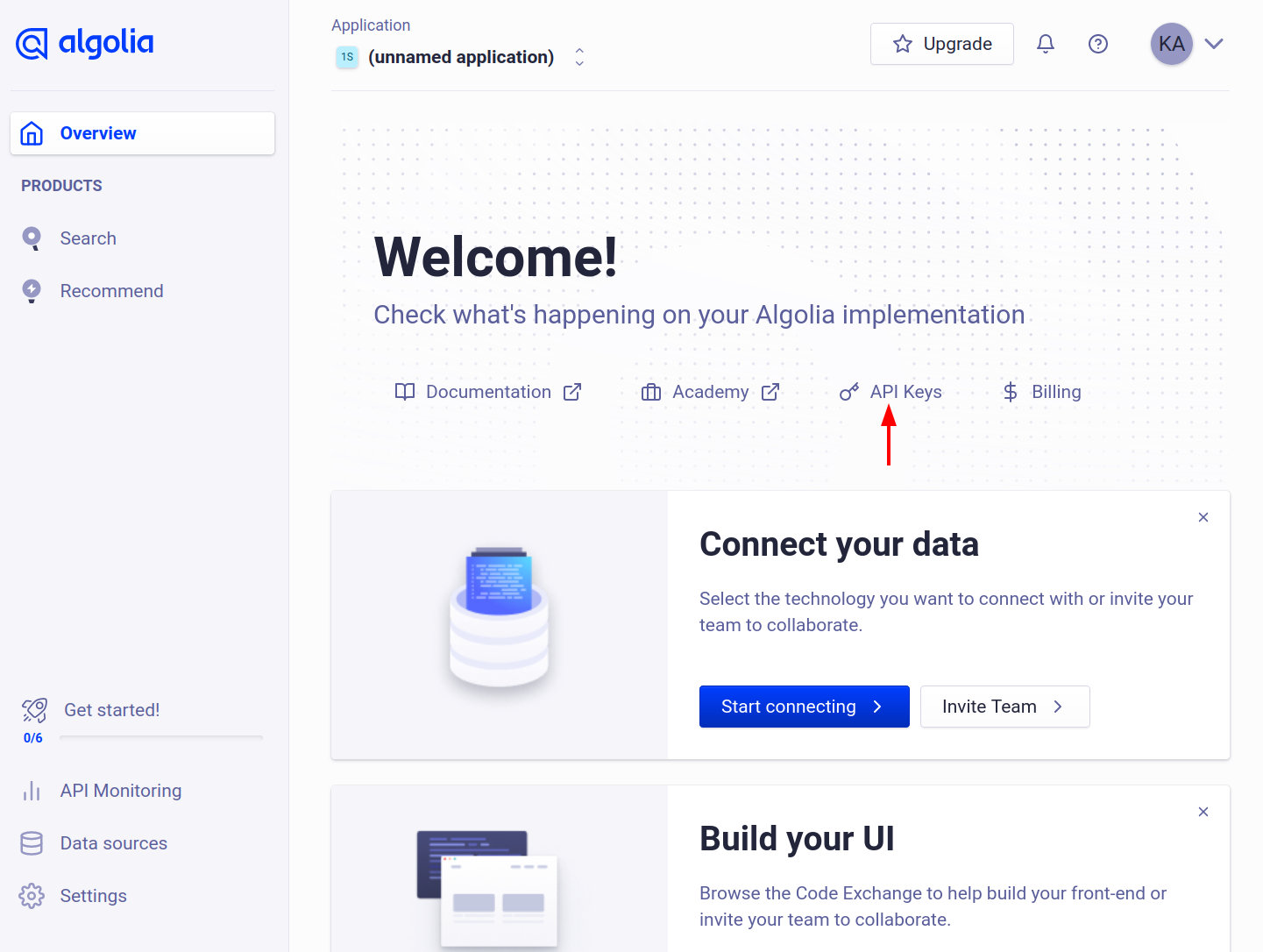
- Click on API Keys
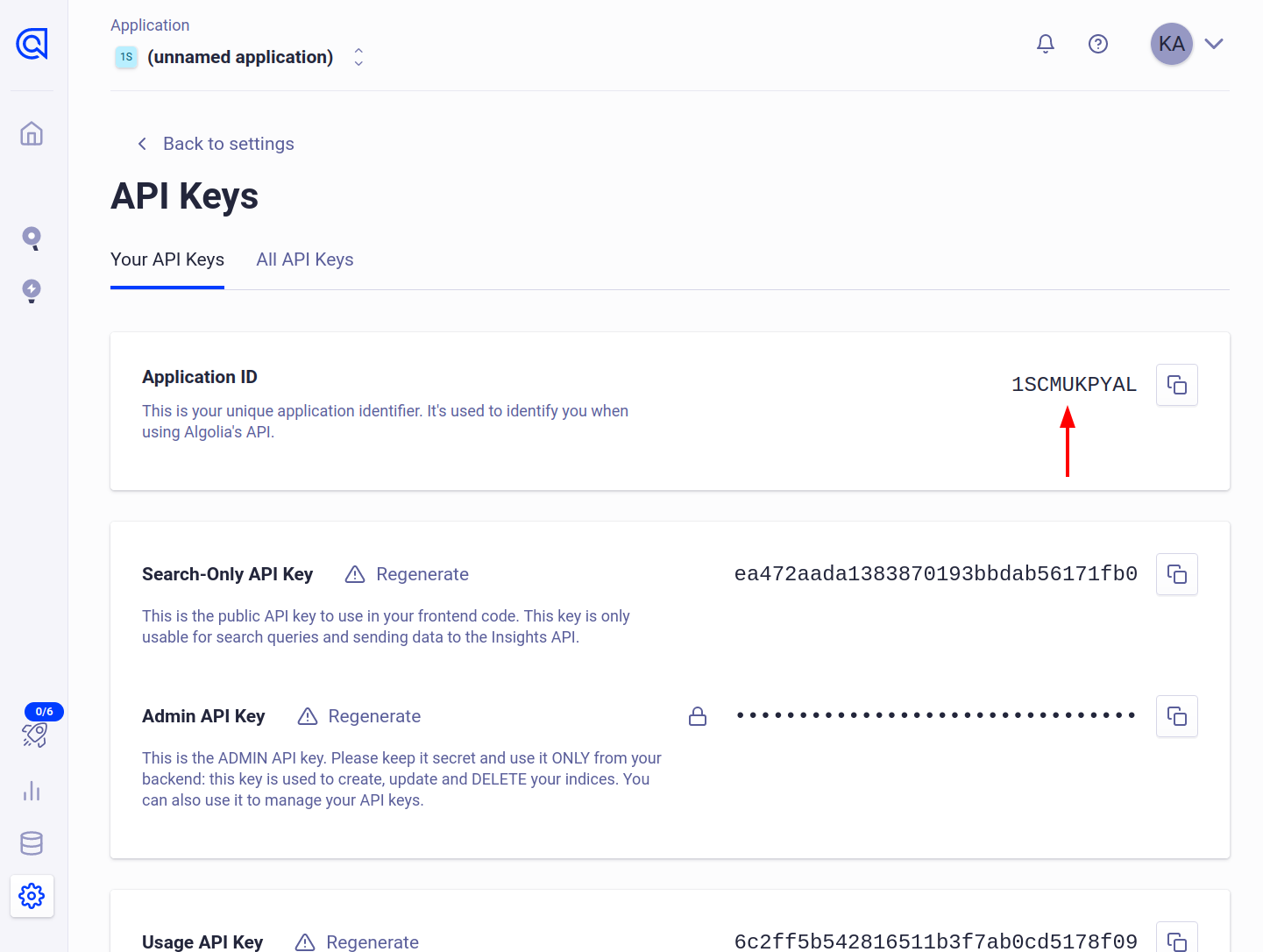
- Make note of the Application ID, we will need it
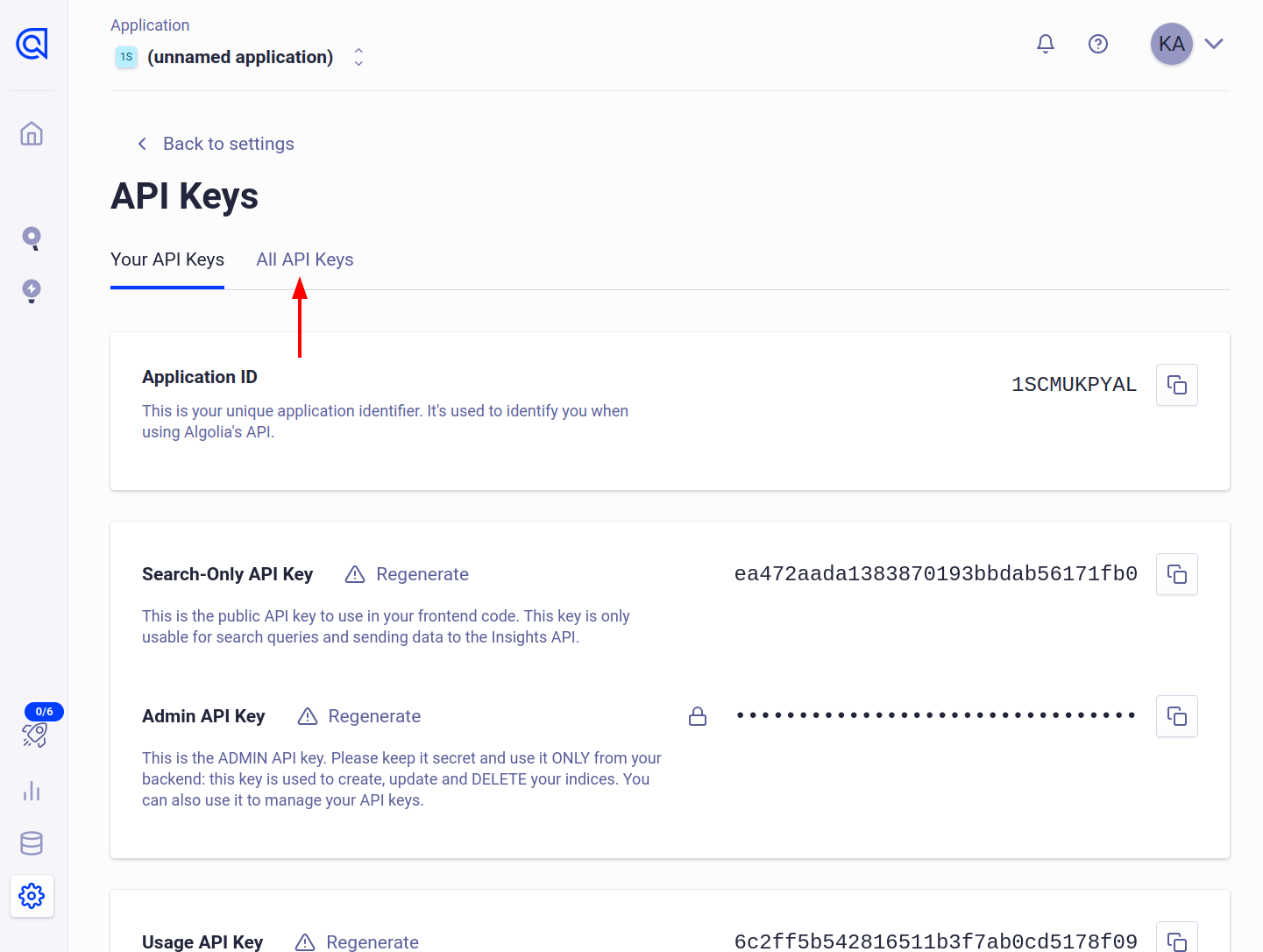
- Click on All API Keys
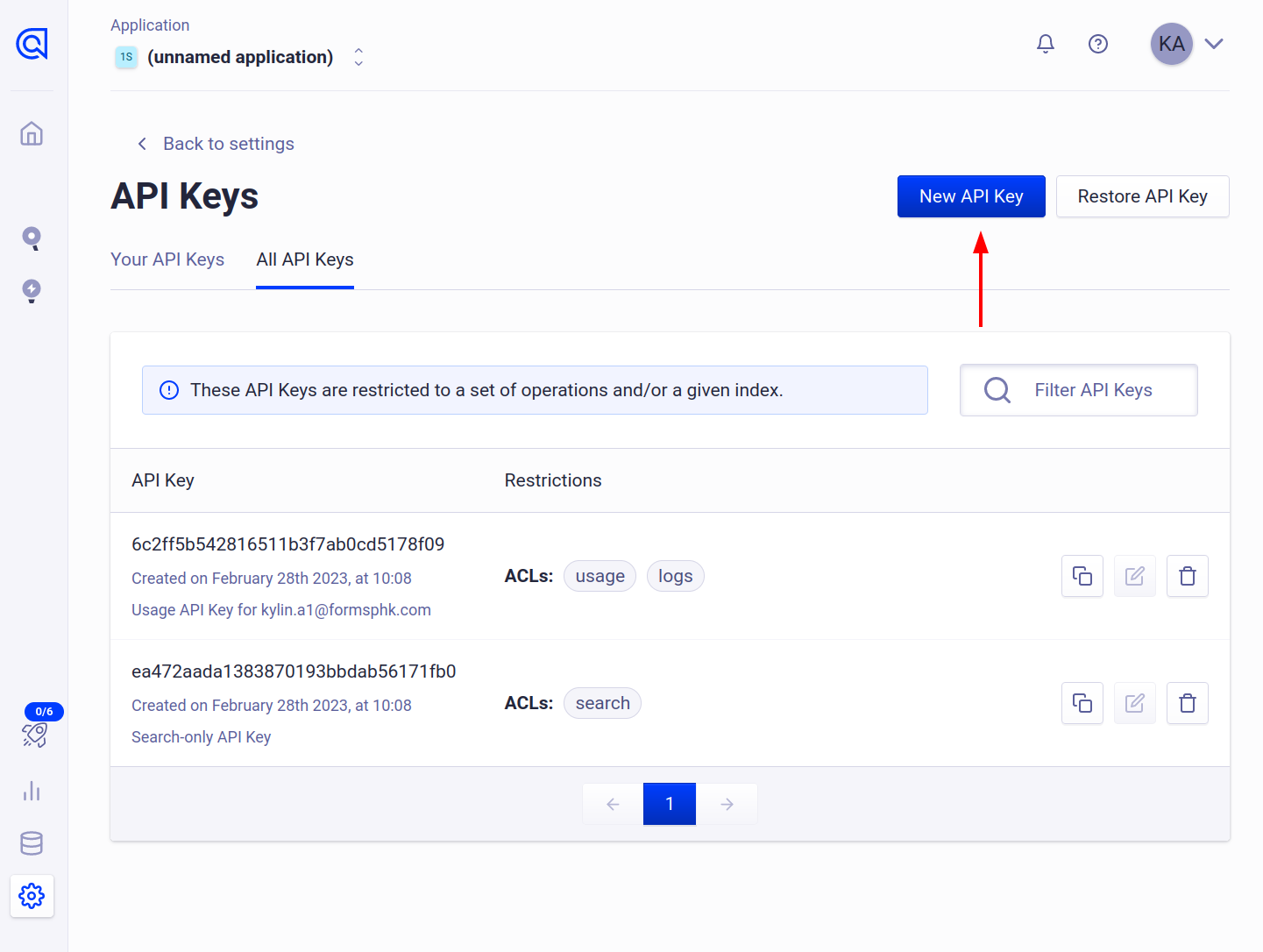
- Click on New API Key
- Scroll to the bottom and add
addObject,deleteIndexandeditSettingsto the ACL list and click onCreate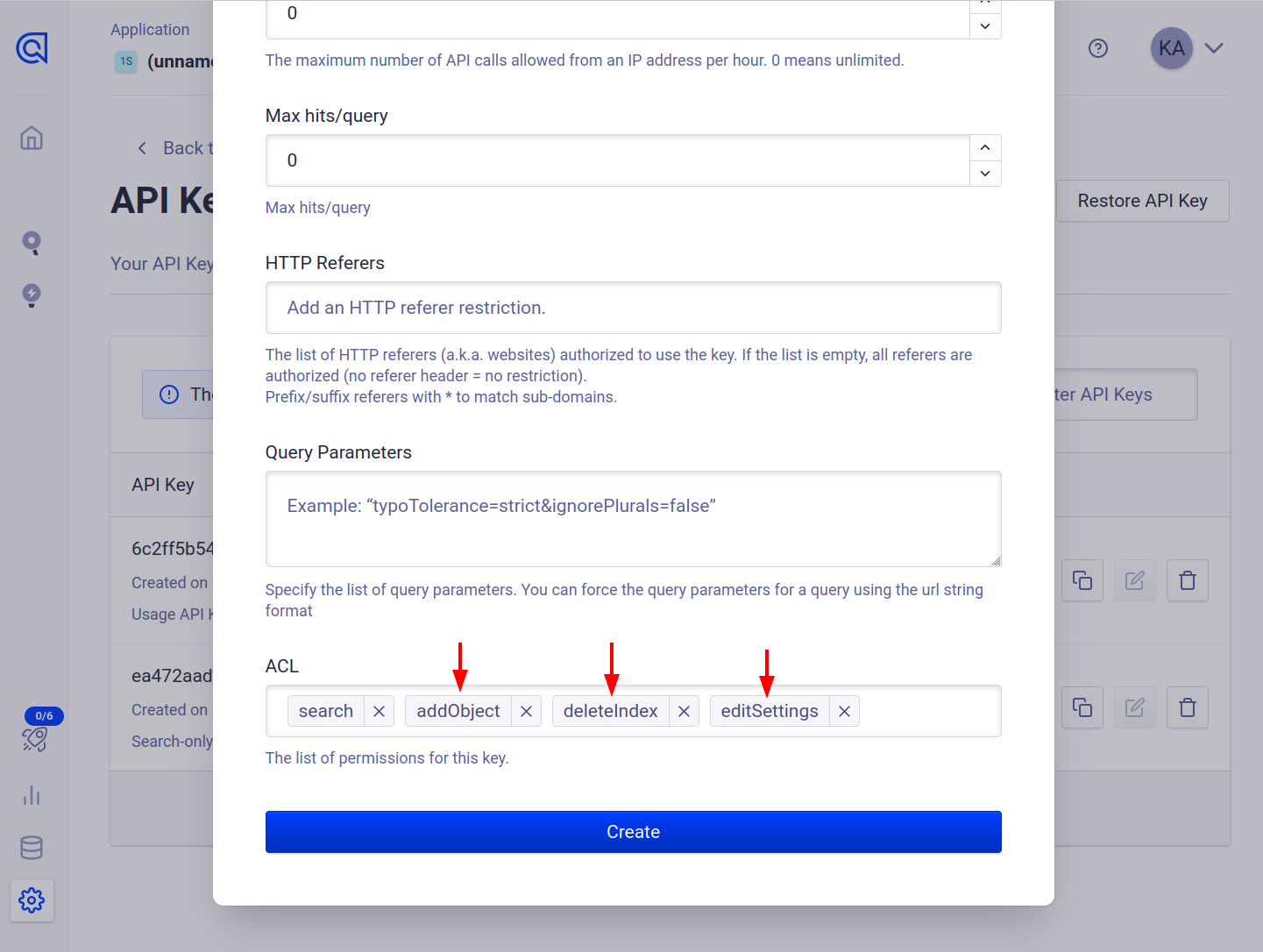
- Make note of the API Key, we will need it
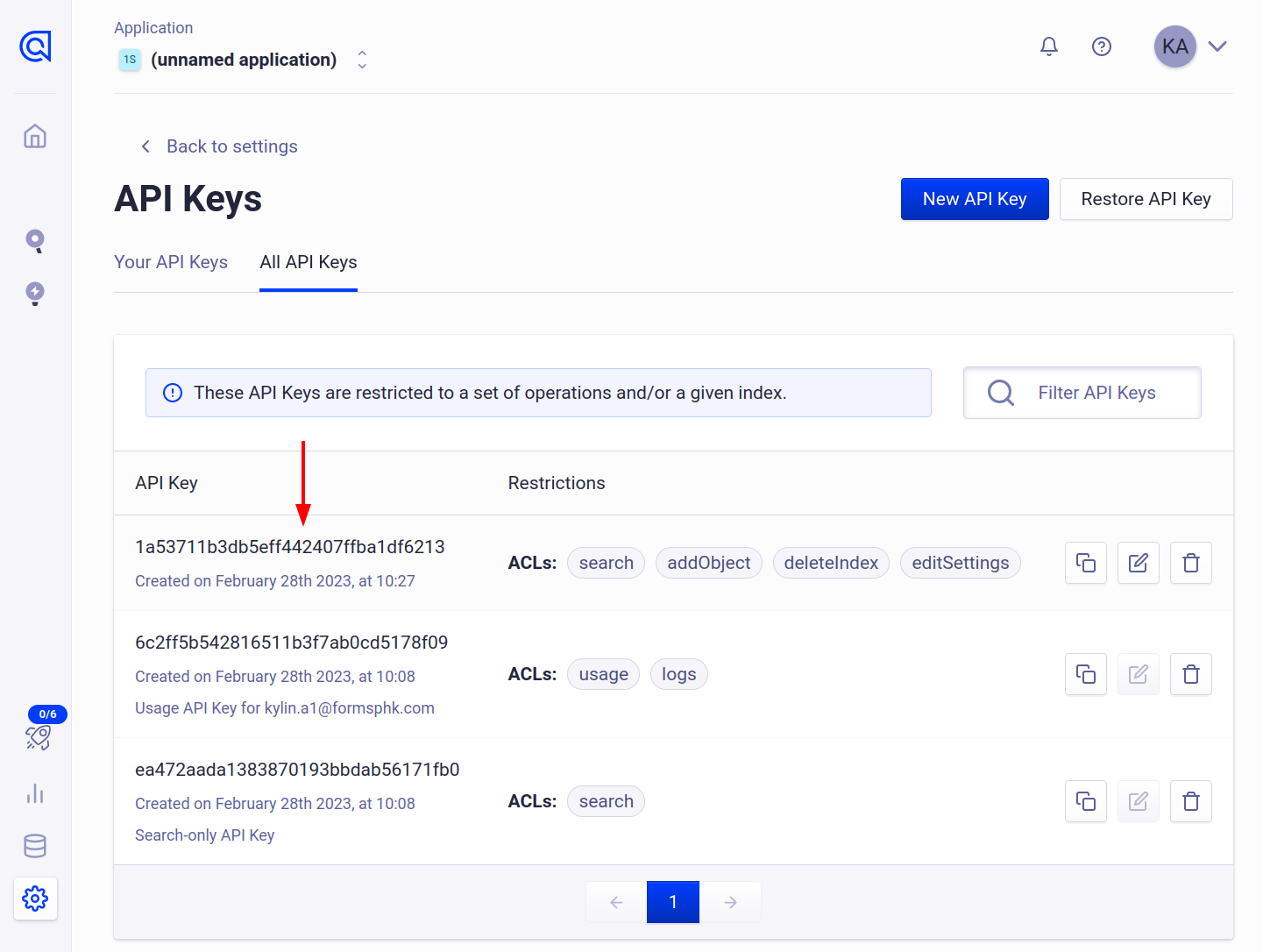
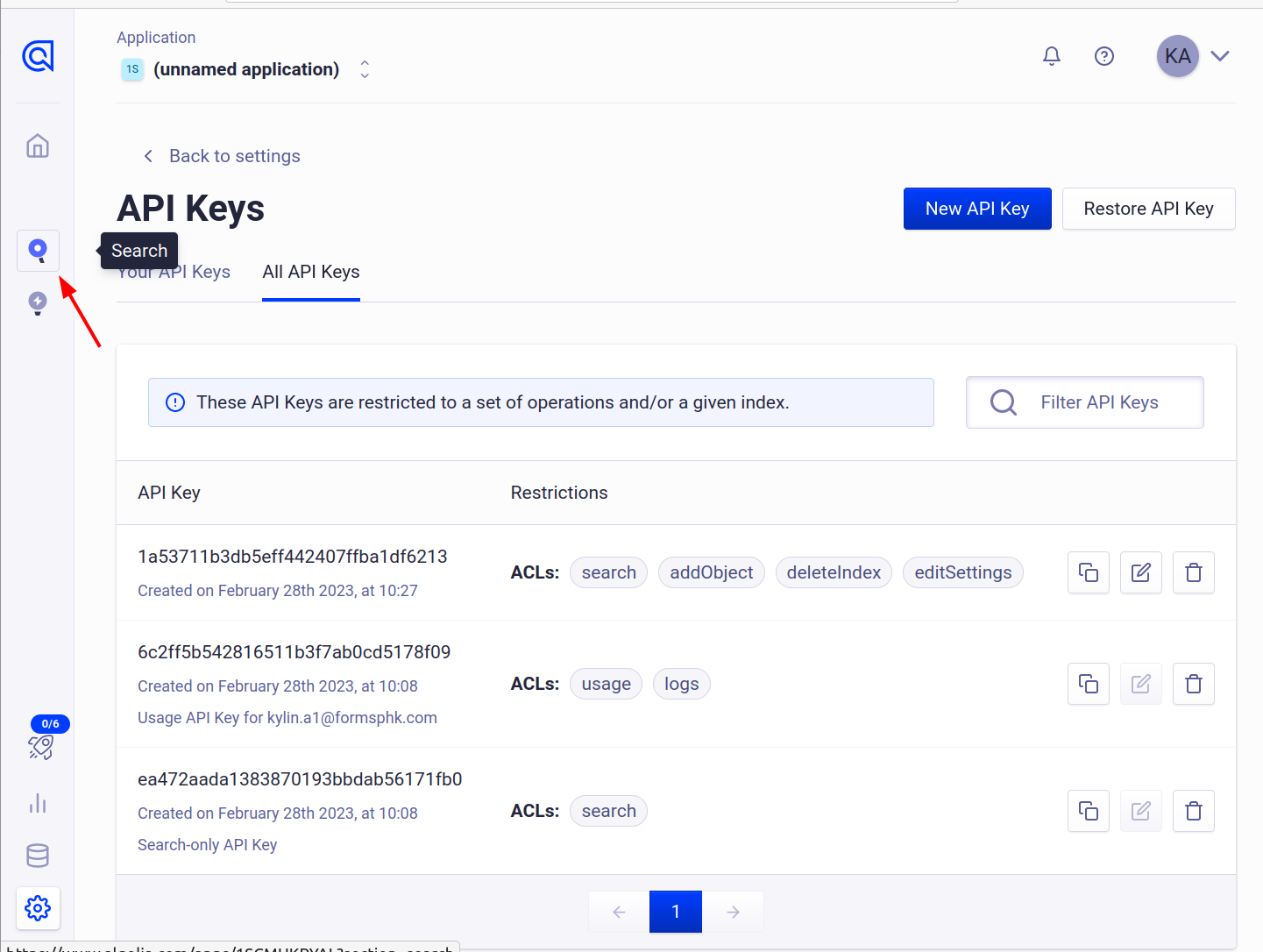
- Now we need to create an index, click on search
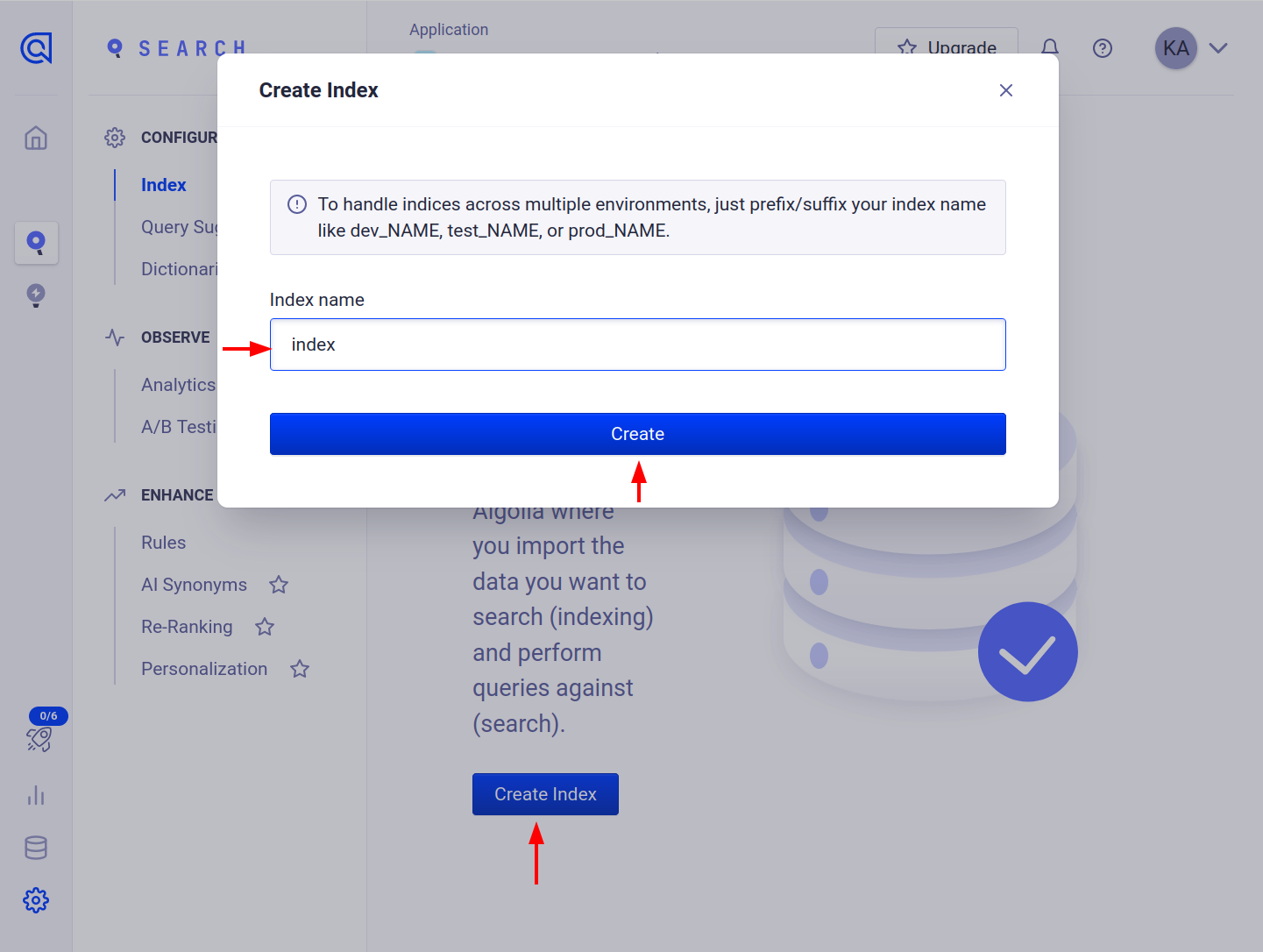
- Click on create index, give it the name index and click create
- We are done with Algolia dashboard settings 🎉️
Docusaurus settings
Install Algolia plugin
pnpm add @docusaurus/theme-search-algolia
Add below snippet with your credentials we noted above inside the themeConfig object
algolia: {
    appId: "your_app_id",
    apiKey: "your_api_key",
    indexName: 'index',
    contextualSearch: true,
    searchParameters: {},
},
Make a file in the root directory called config.json and paste the below code in it. Replace the address with your own at the highlighted line. Leave /sitemap.xml at the end. start_url is needed if docs are at the top level of your site www.example.com. It may not be needed if docs are at docs.example.com
{
    "index_name": "index",
    "sitemap_urls": ["https://your_website.com/sitemap.xml"],
    "start_urls": ["https://your_website.com"], // May not be needed, check above
    "sitemap_alternate_links": true,
    "selectors": {
        "lvl0": {
            "selector": "(//ul[contains(@class,'menu__list')]//a[contains(@class, 'menu__link menu__link--sublist menu__link--active')]/text() | //nav[contains(@class, 'navbar')]//a[contains(@class, 'navbar__link--active')]/text())[last()]",
            "type": "xpath",
            "global": true,
            "default_value": "Documentation"
        },
        "lvl1": "header h1",
        "lvl2": "article h2",
        "lvl3": "article h3",
        "lvl4": "article h4",
        "lvl5": "article h5, article td:first-child",
        "lvl6": "article h6",
        "text": "article p, article li, article td:last-child"
    },
    "strip_chars": " .,;:#",
    "custom_settings": {
        "separatorsToIndex": "_",
        "attributesForFaceting": ["language", "version", "type", "docusaurus_tag"],
        "attributesToRetrieve": ["hierarchy", "content", "anchor", "url", "url_without_anchor", "type"]
    },
    "conversation_id": ["833762294"],
    "nb_hits": 46250
}
Also make a .env file at the root level of your project if you already don't have one and add your credentials in it. Variables need to be named exactly as in the example with no spaces.
ALGOLIA_APP_ID=your_app_id
ALGOLIA_API_KEY=your_app_key
We need install a small dependency called jq. Get it here
Install docker from here
Finally, run the below command in a terminal at the path of your project root and you should now have an index! 🎉️
docker run -it --env-file=.env -e "CONFIG=$(cat ./config.json | jq -r tostring)" algolia/docsearch-scraper
Here's what the output should look like 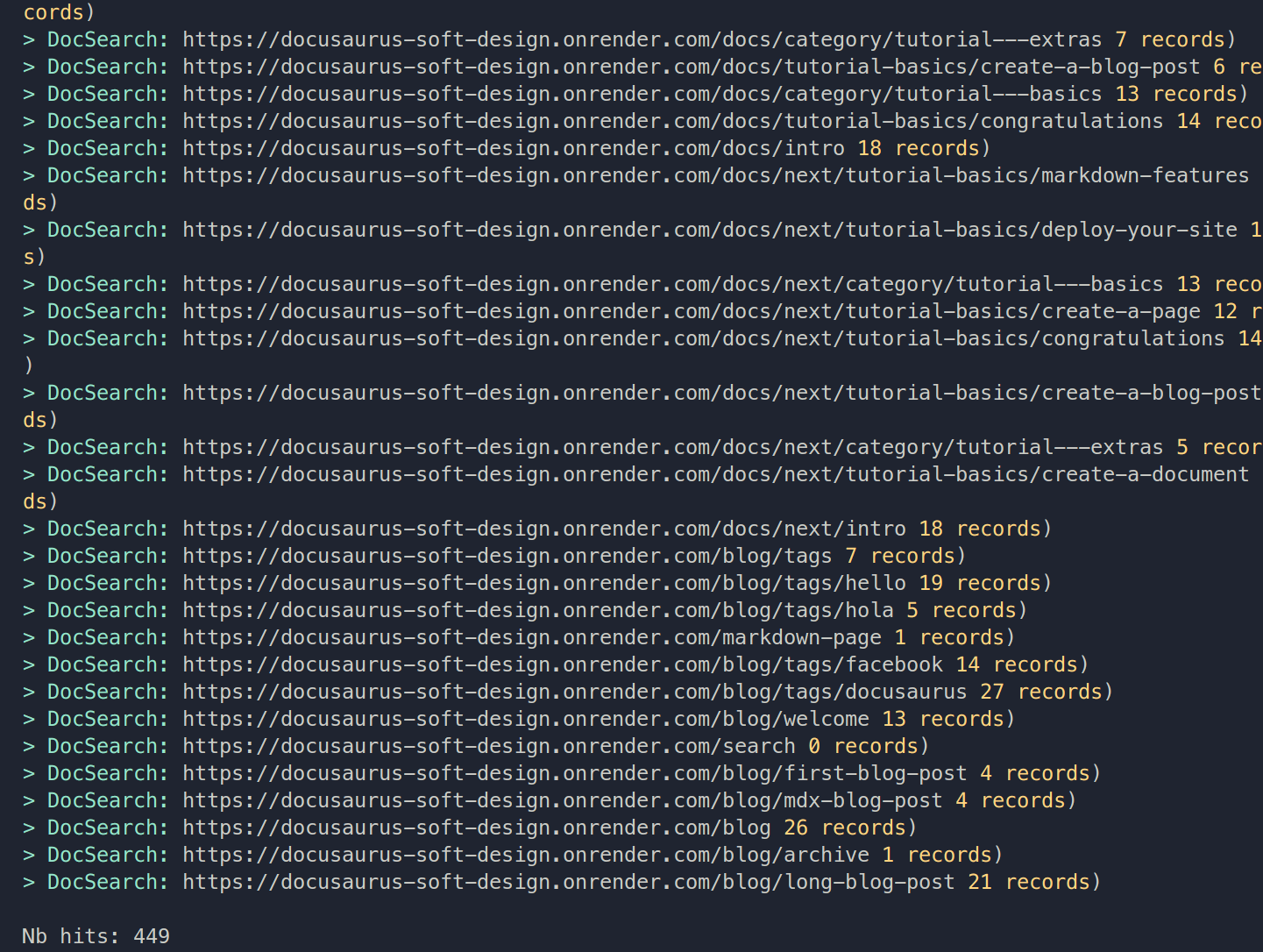
Add to navbar
Make sure to add search to navbar items list.
navbar: {
    title: "Portfolio",
    logo: {
        alt: "My Site Logo",
        src: "img/logo.svg",
    },
    items: [
        {
            type: "docSidebar",
            sidebarId: "tutorialSidebar",
            position: "left",
            label: "Tutorials",
        },
        {
            to: "/blog",
            label: "Blog",
            position: "left",
        },
        {
            type: "search",
            position: "right",
        },
        {
            href: "https://github.com/onattech",
            label: "GitHub",
            position: "right",
        },
    ],
}
Deploy with Github Actions
Make an algolia.yml file in .github/workflows/ folder any copy the contents below.
name: Algolia Indexing

on:
    workflow_run:
        workflows: ["pages-build-deployment"]
        types:
            - completed

jobs:
    algolia-index:
        runs-on: ubuntu-latest

        steps:
            - name: Checkout code
              uses: actions/checkout@v2

            - name: Install JQ
              run: sudo apt-get install -y jq

            - name: Run Algolia Scraper
              run: |
                  docker run --env-file=.env -e "CONFIG=$(cat ./config.json | jq -r tostring)" algolia/docsearch-scraper